


Welcome to a brand-new TechTalksWithPhil blog series, where we explore how Microsoft 365 (M365) can be leveraged to create tailored business solutions. In this series, we’ll focus on building a comprehensive Health & Safety solution, using a variety of M365 applications to streamline processes, improve reporting, and enhance compliance.
Why is a Health & Safety solution so important today?
You’re probably wondering, “Why do I even need a Health & Safety solution?” Well, let me break it down for you.
First off, health and safety isn’t just about avoiding fines or meeting legal requirements—it’s about creating a safe work environment and building trust with your team. But there are a lot of things to consider. Let’s look at the key reasons why this is so important:
- “Why is the workplace more complex?”
Well, today businesses face more regulations, more employee expectations, and more scrutiny from external stakeholders than ever before. Keeping up with all of that manually? It’s tough. Without the right system, it can feel like you’re running in circles just trying to stay compliant. - Manual processes can create big headaches
Do you still rely on paper forms or spreadsheets for incident reporting? If so, it’s time to rethink. Manual processes are inefficient and prone to errors. Incomplete reports, delayed incident logs, and lost data make it hard to track trends and take action. A system that automates this process is key for reducing errors and improving response times.“What happens when we don’t have a proper system in place?” Well, without one, it becomes much harder to:- Spot patterns in incidents
- Implement preventative measures
- Meet compliance obligations in time
- “Why do employees need to trust the system?”
That’s a great question! Employees need to feel confident that when they report an issue, it’ll be taken seriously and addressed. If the reporting system is too difficult, too slow, or simply doesn’t work, employees may avoid reporting, which puts everyone at risk. An easy, transparent, and effective solution encourages employees to report concerns, knowing they’ll lead to action. - It’s about much more than just compliance
Of course, staying compliant is non-negotiable, but here’s something to think about: a great Health & Safety solution actually boosts your company culture. When employees see that their wellbeing is taken seriously, it builds trust, improves morale, and ultimately increases productivity. Isn’t that what we all want?
So, now you might be wondering, “How can Microsoft 365 actually help with this?” Well, I’m glad you asked.
How does Microsoft 365 help build a better Health & Safety solution?
Microsoft 365 is packed with tools that work together to create a seamless, efficient Health & Safety solution. Let’s go over how M365 helps businesses like yours get ahead:
- “What’s the best way to store all this Health & Safety data securely?”
Well, SharePoint is your answer. It’s the perfect hub to store all your sensitive data, and it helps you stay GDPR-compliant. SharePoint also allows you to create custom reports, making it easy to spot trends, monitor incidents, and track compliance over time. Not bad, right? - “How do we collect this data without making it a hassle?”
This is where Microsoft Forms comes in. It’s super simple to use, and your employees can submit incident reports or assessments quickly. Forms help standardise how data is collected, so there’s less room for mistakes. The best part? It’s user-friendly, meaning your team doesn’t have to be tech-savvy to use it! - “What if I don’t have time to manually follow up on every incident?”
That’s a big concern for many teams! That’s where Power Automate comes in. It connects your apps and automates tasks. For example, when an employee submits a form, Power Automate can:- Automatically store the data in SharePoint
- Send notifications to relevant Health & Safety officers via Outlook
- Trigger follow-up actions or reminders to ensure no incident is forgotten.
It makes the whole process run smoothly without having to lift a finger.
- “What if I need help with setting everything up or analysing all the data?”
Enter Microsoft 365 Copilot. Copilot can assist in drafting reports, generating insights, and speeding up the solution setup. For instance, it can help you draft content for a Health & Safety page on your company intranet or analyse the data to spot trends faster. It’s like having a personal assistant who knows the ins and outs of M365!
By the end of the series, you’ll have the knowledge to set up a solution that handles accident reporting, near-miss incidents, and DSE assessments. For simplicity, our examples will focus on building the accident reporting function, but the methods apply to all areas of Health & Safety management.
In Part 1, out of 4, we’ll start by using SharePoint to establish a secure data repository and reporting capabilities. From here, you’ll be able to set up the essential infrastructure, helping your team efficiently manage and analyse Health & Safety data. Let’s get started!
Part 1: SharePoint
The first thing that we need is somewhere to store our data and to create any management reports that are needed. SharePoint will be used for storing data, creating reports and creating a Health and Safety page for employees.
Once the accident report function has been created and tested, a Health and Safety page will be created on your company Intranet with links to all related Health and Safety content. The new Health and Safety page will look something like this.

On this page there are tiles that are linked to documents and functions, including ‘Report an Accident’. We will look at using Copilot to assist with creating this page when the rest of the solution is completed.
First create a new SharePoint site using the Team template. You can either create the site with or without an Office 365 group depending on your preference. This site will be secure and only allow access to the H&S team, employees should not have access to the site as it will contain data that is subject to GDPR. Data collected from employees will be added to the site using a Power Automate Flow, so you must make your Flow account a site admin, the account needs to be at least a member of the site and have edit access to lists but making the account site admin ensures it will always have proper access to all current and future lists.
Now create a list called ‘Accident Reports’ and add a column for each field of data you want to collect. Below is a list of columns that I have used.
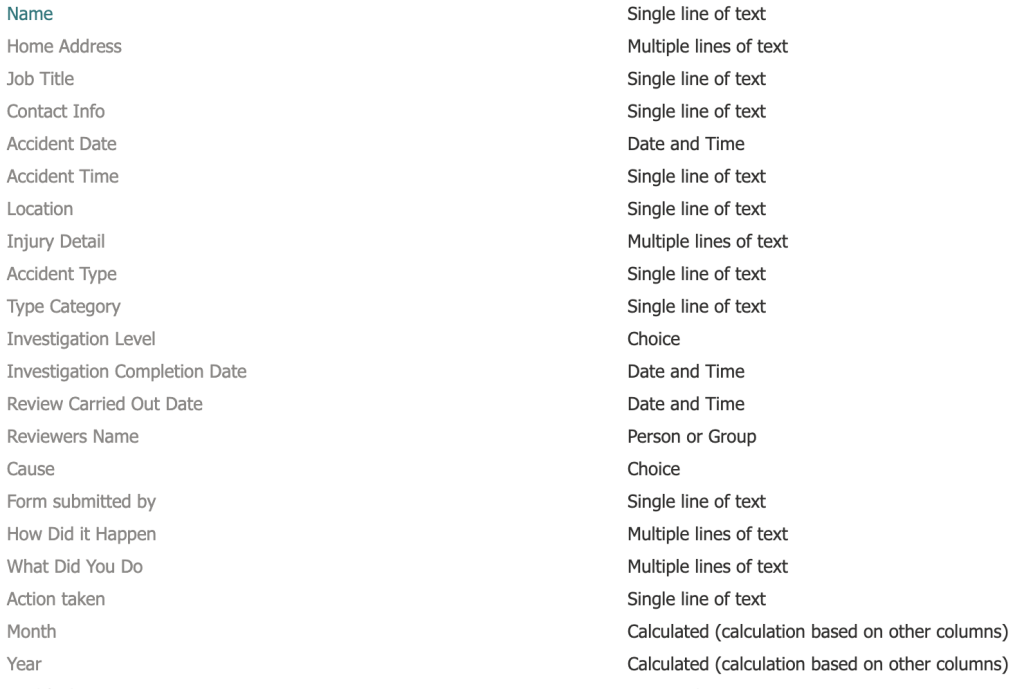
Notice that I have added a couple of calculated columns for month and year. These can be used to assist in creating groups in your list views or creating analytics reports from the collected data.
The formulae for month and year columns are:
=TEXT([Accident Date],”mmmm”)
=TEXT([Accident Date],”yyyy”)
This is how the list looks with a couple of years of data in it. The list is grouped by year and month using the calculated columns. Then after clicking on year followed by month.

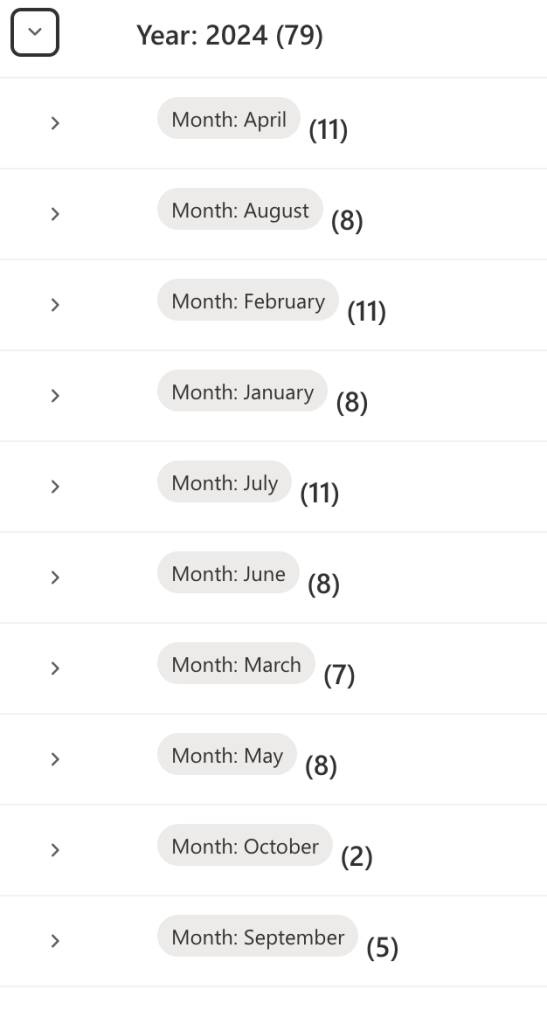
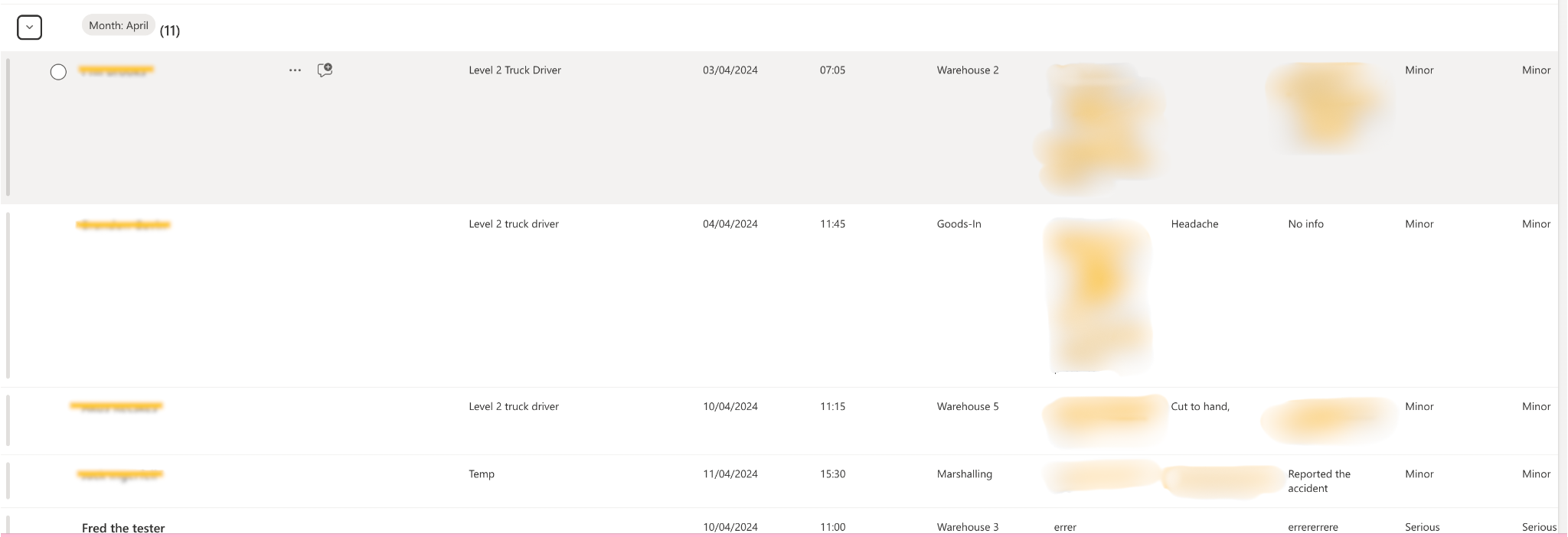
The data can be exported to Excel or used to create Power BI reports. We can see what the data looks like once collected but we still need to collect the data from employees and save it to the list.
Here’s some frequently asked SharePoint questions, that we’ve got the answers to:
Q1: What exactly is SharePoint and how does it work?
Phil: SharePoint is a collaboration tool that allows teams to store, share, and manage documents and data. It’s great for creating secure, organised workspaces where teams can access and collaborate on content. SharePoint is highly customisable, enabling businesses to build sites tailored to their needs, whether for document management, team collaboration, or project tracking.
Q2: Can SharePoint be used for document storage and sharing?
Phil: Yes! SharePoint is ideal for document storage. You can upload, share, and access files from anywhere, with version control and permissions ensuring only the right people can view or edit sensitive content. It’s perfect for keeping teams aligned while managing documents securely.
Q3: How do I control who can access data in SharePoint?
Phil: SharePoint has robust permissions settings that let you control access at the site, document, or list level. You can easily set up user roles to ensure that only those with the proper credentials can access, view, or edit certain content, ensuring your data remains secure.
Q4: Can SharePoint integrate with other Microsoft 365 apps?
Phil: Absolutely! SharePoint integrates seamlessly with Microsoft 365 apps like Teams, Outlook, Power Automate, and Power BI. This integration makes it easy to automate workflows, share information, and create powerful reports. For example, you can automate document approvals or track project progress using Power Automate.
Q5: How scalable is SharePoint for growing businesses?
Phil: SharePoint is highly scalable. Whether you’re a small team or a large enterprise, SharePoint can grow with you. It supports multiple sites and storage options, and it integrates with various tools for reporting and data analysis, allowing you to manage everything efficiently as your business expands.
———————————————————————————————————————————————————————————————
Ready to dive deeper into automating the process? Stay tuned for Part 2 of this series, where we’ll walk through creating a Microsoft Forms accident report that integrates seamlessly with SharePoint through Power Automate. By the end of the next blog, you’ll have a fully automated system in place for efficient accident data collection.
———————————————————————————————————————————————————————————————–
Transform Your Business with Our SharePoint Services
At Adepteq, we offer a full suite of SharePoint services designed to help businesses achieve their digital transformation goals:
- SharePoint Consultancy: We take the time to understand your organisation’s unique challenges and craft tailored SharePoint solutions that align with your business needs and objectives.
- SharePoint Development: Our experienced team designs customised SharePoint environments that optimise workflows, making day-to-day tasks more efficient for your employees.
- SharePoint Deployment: From planning to execution, we handle the entire SharePoint deployment process, ensuring a smooth transition with minimal disruption to your operations.
- SharePoint Migration: Our secure data migration services ensure that all your files, documents, and emails are safely transferred into the correct SharePoint sites and libraries, with minimal risk and zero data loss.
- SharePoint Training: We provide in-depth training sessions to ensure your staff can fully leverage the SharePoint platform, empowering them to maximise its potential in their roles.
- SharePoint Support: Our ongoing support services are available to assist with any issues, from troubleshooting to future optimisations, ensuring your system remains effective and reliable long after deployment.
Book a SharePoint Discovery Call
If you’re looking to enhance your business’s internal communication and collaboration, book a SharePoint Q&A Discovery Call with us today. Our experts will work with you to identify the most effective solutions for your needs and walk you through how a custom SharePoint Intranet can transform your business. And if you’d like a demo of a SharePoint Intranet, we can provide a hands-on look at one of our best implementations, showing you firsthand how it can improve communication, document management, and team collaboration within your business.